Welcome to SatelliteStreetView!
Your extension has been successfully installed. Get ready for the easiest way to find and print directions for your next road trip!
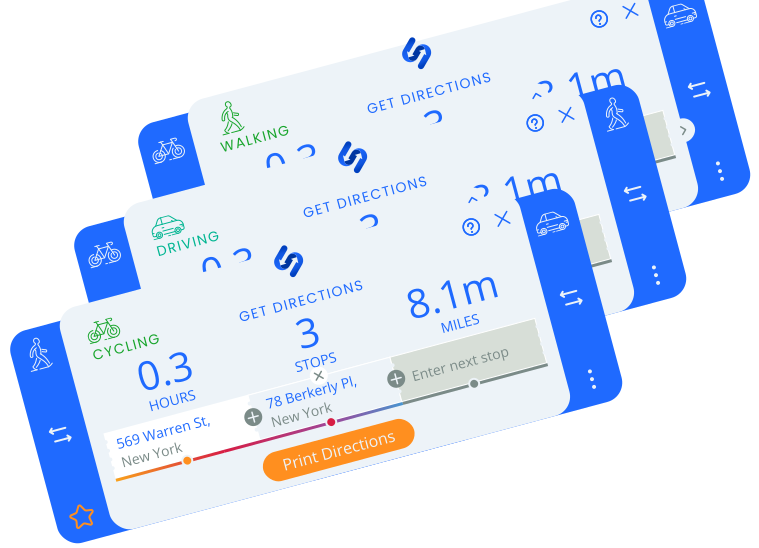

Accessing the Widget
You can start using SatelliteStreetView in just one click! Here’s all you need to know.

Opening the Widget
Access SatelliteStreetView at any time by clicking on the icon. You can also move the widget or icon wherever you’d like within your browser.

Reactivating the Widget
If disabled, you can easily reactive the widget by clicking the SatelliteStreetView icon at the top right of your browse, then select ‘Toggle application state’.
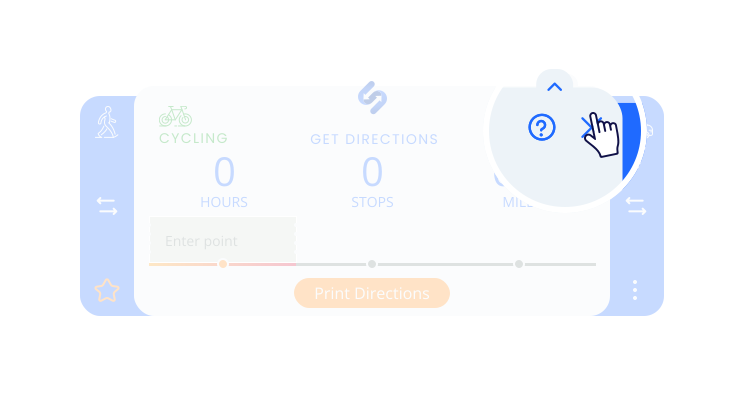
Closing the Widget
Once done using SatelliteStreetView, you can close the widget by clicking the X close icon.
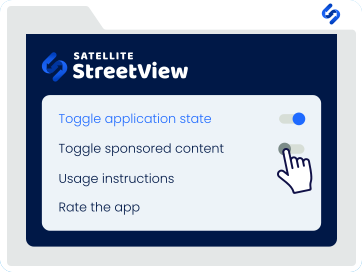
Disabling sponsored content
To turn off sponsored content, simply set ‘Toggle sponsored content’ to Off.
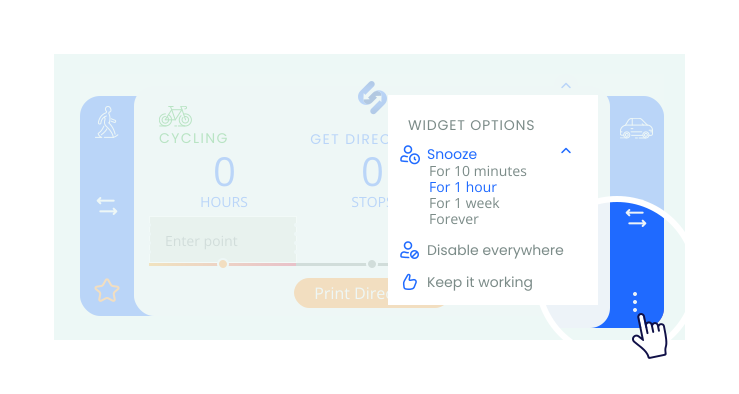
Disable the Widget
To snooze or disable the SatelliteStreetView widget, click the Settings icon to view a menu with these options.
Directions & Printing
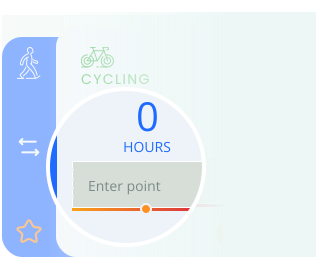
Find the Best Route
Begin by entering your starting point and end destination. You can include as many stops or additional addresses as you need to build a complete route.
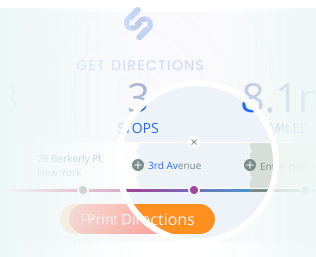
Adjust Your Route
To reorder your stops along the way, simply click and drag the box with a named stop. To add a new stop, click the + icon.
Remove Stops
To remove a stop in your journey, hover over the address and click the X button that appears.

Print Your Directions
The final step! Click ‘Print Directions’ to download or print your directions with step-by-step navigation.
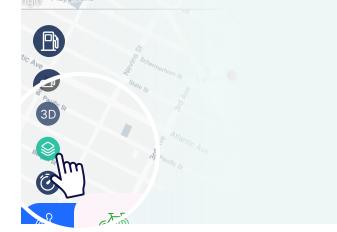
Start Maps in Satellite View
Change your default view by enabling maps in satellite view.
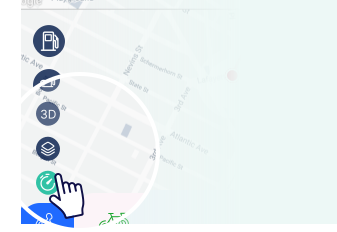
Current Traffic
Trying to avoid traffic? Check your local traffic before heading on your way.
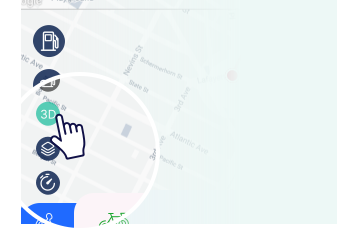
3D View
Experience your route in detail with the 3D view, offering a dynamic, lifelike perspective of the map.
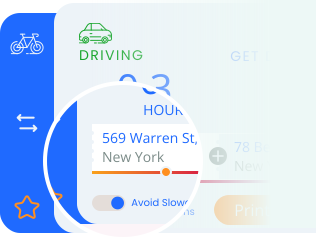
Avoid Slowdowns
Steer clear of traffic jams - simply turn on the Avoid Slowdowns option.
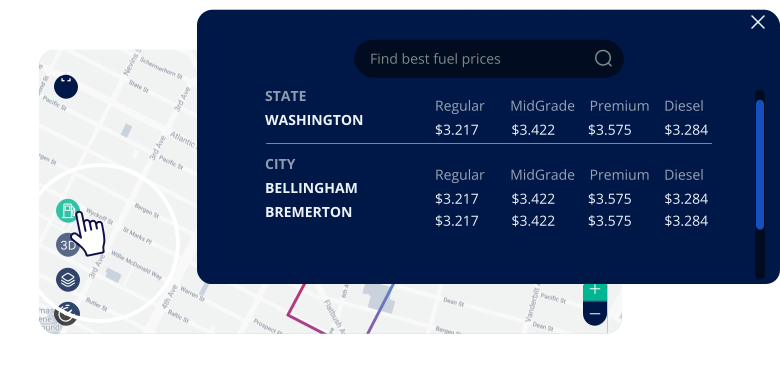
Gas Price
It allows you to find the cheapest gas along your route and plan where to fill up.